When a deployment stops including an object that a previous release deployed, Octopus marks that object as Orphaned in Kubernetes Live Object Status, and it keeps running in your cluster until someone removes it. Octopus can delete orphaned objects for you, one at a time or in bulk, from the project’s Live Status page.
Requirements
To delete orphaned objects you need:
- Octopus Server 2026.3 or later
- Every Kubernetes monitor in the application on agent version 2.38.3 or later (v2) / 3.0.1 or later (v3), the same requirement as orphan tracking itself
- The
DeployedResourceAdministerpermission for the project, environment, and tenant you are deleting in - A Kubernetes agent whose service account is allowed to delete the objects in question
- Objects reported by the Kubernetes monitor. Objects observed through Argo CD are never orphaned and cannot be deleted this way
Delete orphaned objects
Open your project and select Live Status for the environment (and tenant) you want. The table offers a delete action on every orphaned row, and when an application has orphaned objects the page also shows a card counting them. To list only orphaned objects, use the Sync status filter and select Orphaned.
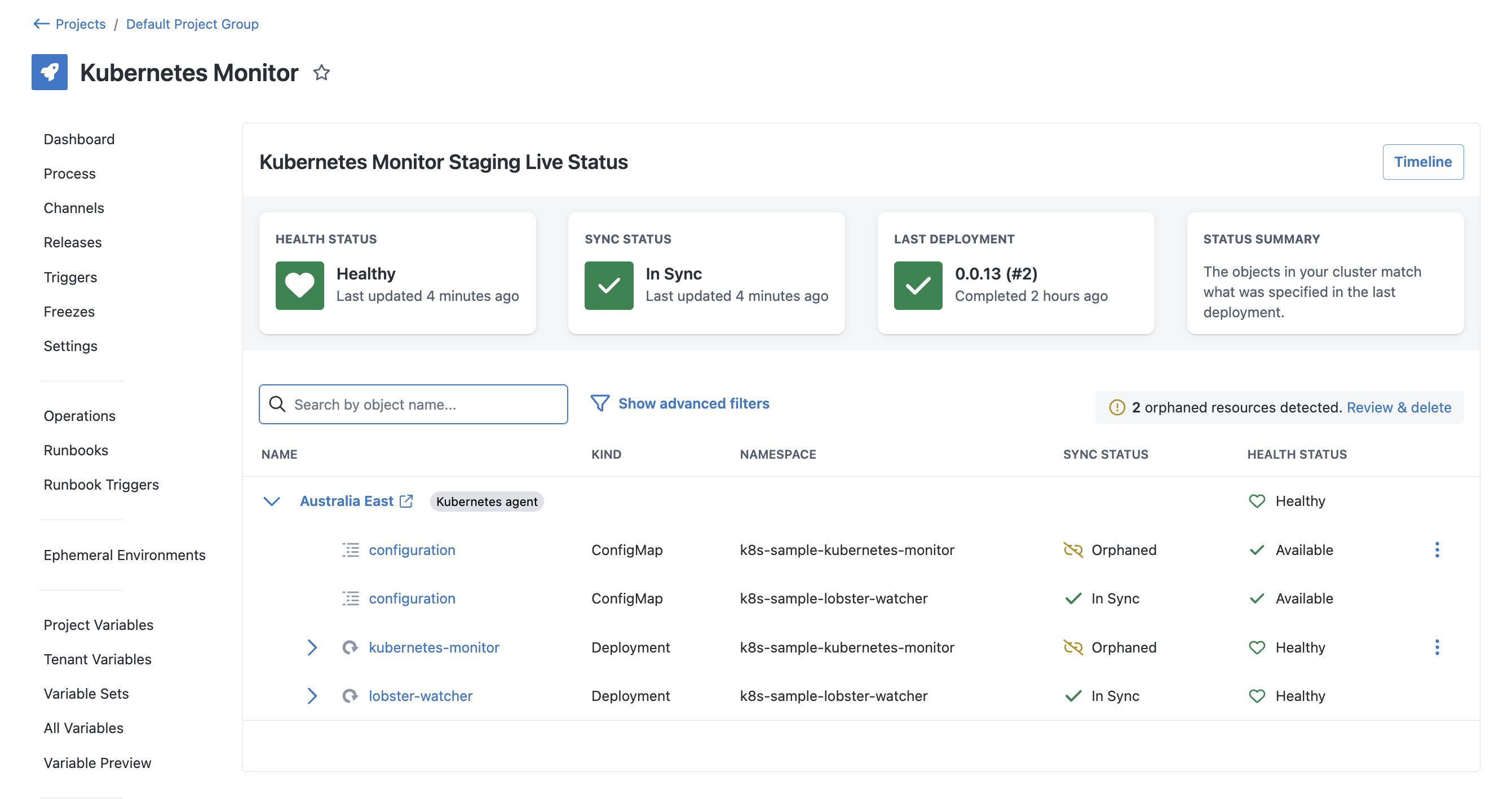
A single object
- Open the row’s Resource actions menu and choose Review & delete.
- Confirm in the Delete orphaned resource dialog by choosing Delete.
You can also select the object to open its detail drawer and use the Delete button there.
Several objects at once
- Choose Review & delete on the orphaned-objects card to open the Delete orphaned resources drawer.
- Select the objects to delete. Objects are grouped by deployment target, so you can select a whole target or everything at once.
- Choose Next.
- Review the Confirm deletion step, which lists every selected object grouped by deployment target.
- Choose Delete.
The deletion task
Each request queues one Delete Kubernetes resources task, which is linked from the Kubernetes resource being deleted. Deletion tasks can run at the same time as deployments.
The deletion task runs a script on the Kubernetes Agent that calls kubectl delete with a 5 minute timeout for each resource. If some objects delete and others don’t, the task deletes everything it can, records every outcome, and then fails.
Octopus validates your selection when you confirm, and silently skips an object when:
- The object is no longer orphaned, most likely because a deployment re-added it.
- A deletion task for the object is already queued or running.
- The monitor no longer reports the object in the cluster, so there is nothing to delete.
- Status information for the object is stale, so Octopus cannot safely delete it.
Permissions
Deleting an orphaned object needs permission in two places: in Octopus, to request the deletion, and in your cluster, for the agent that carries it out.
Octopus permissions
Requesting a deletion requires the DeployedResourceAdminister permission (“Administer deployed resources managed by Octopus”), scoped to the project, environment, and tenant. It is included by default in the Project Contributor, Project Deployer, Project Lead, and Space Manager built-in roles, and is added to those roles on existing instances when you upgrade.
Cluster permissions
Octopus deletes objects by running kubectl delete on the Kubernetes agent, so the deletion uses the agent’s service account. Make sure that account is allowed to delete the kinds and namespaces you expect to clean up. When you use the permissions controller to scope permissions per step, deletions run under the reserved step slug octopus-kubernetes-resource-deletion.
Auditing
Every deletion task writes one audit event to the Audit screen in Configuration, succeeded or failed, recorded against the user who requested it. Its details list every object with its outcome, grouped by deployment target, with failures first.
Known limitations
- Only top-level orphaned objects can be deleted. Child objects, such as Pods belonging to a Deployment can’t be deleted from Octopus to restart a service.
- You cannot stop tracking an orphaned object without deleting it. If the object is still needed by something else, delete it and recreate it from a different project.